Thing #22 - Take a Look at Titles on NetLibrary and Learn How To Download eAudiobooks
For this Thing, we are dealing with two different kinds of books - ebooks and eaudiobooks. Ebooks are read on the computer screen or other device and eaudiobooks are downloaded and listened to on a computer or other listening device (mp3 player, iPod, etc.).
While there are many places to access both ebooks and eaudiobooks, for this Thing we will discuss the collections available in NetLibrary. To access these collections, you will need an account from the library. The Ephrata Public Library subscribes to NetLibrary's eaudiobook collection separately from other libraries and an account is needed. To set up an account, please email the following information to ptalbert@ephratapubliclibrary.org:
- Your Name
- Your Library Card Number
- The Municipality in Which You Live
- Your Email Address
- A Username and Password (Usernames and Passwords must be at least 6 characters and should be unique identifiers.)
Within 24 hours, we will email you to let you know your account has been activated.
For this discovery exercise, you merely need to familiarize yourself a bit with the structure of NetLibrary's Downloadable eAudiobooks site and get an idea of the types of titles you can find here. Take a look around and locate a few titles of interest.
Discovery Resources:
NetLibrary's eBook Collection
NetLibrary's eAudiobook Center
eAudiobook Tutorial
Discovery Exercise:
1. Create a NetLibrary account using the instructions above.
2. Once you have an account created, you can access NetLibrary directly at http://netlibrary.com
3. Click on the eAudiobooks link and explore some of titles.
OPTIONAL: Try downloading a title from the NetLibrary. You don’t have to have a portable player to listen to audiobooks, you can also listen to it from a computer.
***Thing #23 - Summarize your thoughts about the program on your blog.
When are done with this - your final Thing - send an email to ptalbert@ephratapubliclibrary.org. After we review everyone's blog, you will receive an email informing you of when to pick up your free flash drive, as well as informing the winner of the Amazon Kindle.
We hope you have enjoyed this virtual learning experience and would love feedback on the program.
Tuesday, March 30, 2010

Tuesday, March 23, 2010
Week #8 - Podcasts and Video
***Thing #19 - Discover YouTube and a few sites that allow users to upload and share videos.
Wikipedia's explanation on YouTube
In this exercise we will be having a look at the video hosting site YouTube. YouTube is currently the most popular site to allow users not only to upload their own video content easily, but also embed clips into their own sites easily.
Do some searching around YouTube yourself and see what the site has to offer. You'll find everything from Web 2.0 to the Revolution of dance to Mr Bean's revolution of dancing. Of course, like any free site you’ll also find a lot stuff not worth watching too. But that does not mean you shouldn't explore and see for yourself what the site has too offer.
Also, here is a video created by the teens at Ephrata High School as an introduction the their morning show, Ephrata AM.
Discovery Exercise:
1.Explore YouTube & find a video worth adding as an entry in your blog.
2.Create a blog post about your experience. What did you like or dislike about the site and why did you choose the video that you did?
3. Try placing the video inside your blog using the copy and paste code for the "Embeddable Player.” Note: you'll need to use Blogger's Edit HTML tab when pasting this code.
Other popular video hosting sites:
Yahoo Videos
Google videos
Others - top video site list
***Thing #20 - Learn About Podcasts and Discover Some Useful Search Tools for Locating Podcasts
In 2005, "podcast" was named the "word of the year" by New Oxford American Dictionary and with the growth of podcasting over the last few years, it's easy to see why. Podcasts take many forms, from short 1-10 minutes commentaries (like the podcasts that have been created for this Learning 2.0 program) to much longer in person interviews or panel group discussions. There’s a podcast out there for just about every interest area and the best part about this technology is that you don’t have to have an iPod or a MP3 player to access them.
Since podcasts use the MP3 file format, a popular compressed format for audio files, you really just need a PC (or portal device) with headphones or a speaker. iTunes, the free downloadable application created by Apple is the directory finding service most associated with podcasts, but if you don’t have iTunes installed there are still plenty of options.
Discovery Rescources:
Have a look at Podcasting in Plain English.
Some Podcasting Directories
http://www.podcastdirectory.com/
www.learnoutloud.com/podcast-directory
Optional Advanced Resources: (for those who want to learn how to create a podcast of their own)
Beginner's guide to Podcasts & Creating Podcasts
How to podcast tutorial
Discovery Exercise:
Take a look at ITunes or one or two of the podcast directories listed above and see if you can find a podcast that interests you. See if you can find some interesting library related podcasts, like book review podcasts or library news.
Add the RSS feed for a podcast to your Blogger account
***Thing #21 - Post Some Links on Your Blog for Videos and Podcasts You've Discovered. Discuss How This Medium is Changing the Way People Can Share Creative Projects
Wikipedia's explanation on YouTube
In this exercise we will be having a look at the video hosting site YouTube. YouTube is currently the most popular site to allow users not only to upload their own video content easily, but also embed clips into their own sites easily.
Do some searching around YouTube yourself and see what the site has to offer. You'll find everything from Web 2.0 to the Revolution of dance to Mr Bean's revolution of dancing. Of course, like any free site you’ll also find a lot stuff not worth watching too. But that does not mean you shouldn't explore and see for yourself what the site has too offer.
Also, here is a video created by the teens at Ephrata High School as an introduction the their morning show, Ephrata AM.
Discovery Exercise:
1.Explore YouTube & find a video worth adding as an entry in your blog.
2.Create a blog post about your experience. What did you like or dislike about the site and why did you choose the video that you did?
3. Try placing the video inside your blog using the copy and paste code for the "Embeddable Player.” Note: you'll need to use Blogger's Edit HTML tab when pasting this code.
Other popular video hosting sites:
Yahoo Videos
Google videos
Others - top video site list
***Thing #20 - Learn About Podcasts and Discover Some Useful Search Tools for Locating Podcasts
In 2005, "podcast" was named the "word of the year" by New Oxford American Dictionary and with the growth of podcasting over the last few years, it's easy to see why. Podcasts take many forms, from short 1-10 minutes commentaries (like the podcasts that have been created for this Learning 2.0 program) to much longer in person interviews or panel group discussions. There’s a podcast out there for just about every interest area and the best part about this technology is that you don’t have to have an iPod or a MP3 player to access them.
Since podcasts use the MP3 file format, a popular compressed format for audio files, you really just need a PC (or portal device) with headphones or a speaker. iTunes, the free downloadable application created by Apple is the directory finding service most associated with podcasts, but if you don’t have iTunes installed there are still plenty of options.
Discovery Rescources:
Have a look at Podcasting in Plain English.
Some Podcasting Directories
http://www.podcastdirectory.com/
www.learnoutloud.com/podcast-directory
Optional Advanced Resources: (for those who want to learn how to create a podcast of their own)
Beginner's guide to Podcasts & Creating Podcasts
How to podcast tutorial
Discovery Exercise:
Take a look at ITunes or one or two of the podcast directories listed above and see if you can find a podcast that interests you. See if you can find some interesting library related podcasts, like book review podcasts or library news.
Add the RSS feed for a podcast to your Blogger account
***Thing #21 - Post Some Links on Your Blog for Videos and Podcasts You've Discovered. Discuss How This Medium is Changing the Way People Can Share Creative Projects
Tuesday, March 16, 2010
Week #7 - Online Applications and Tools
***Thing 17 - Take A Look At Some Online Productivity (Word Processing, Spreadsheet) Tools
One major benefit to web-based applications is that they eliminate the need to worry about different software versions or file types as you email documents or move from PC to PC. Another bonus is that they easily accommodate collaboration by allowing multiple users to edit the same file and provide users the ability to easily save and convert documents as multiple file types (including HTML and pdf). And, you can even use many of these tools, such as Zoho Writer and Google Docs (Formerly known as Writely) to author and publish posts to your blog.
It’s this type of integration with other Web 2.0 tools that also makes web-based apps so appealing. For this discovery exercise, you are asked to take a look at a web-based word processing tool called Zoho Writer, create a simple document and then document your discoveries in your blog. If you are up to the challenge, you might even export your document as an HTML file or publish it through Zoho to your blog. With Zoho and web-based applications, the possibilities are endless.
Discovery Resources:
A short list of web-based productivity applications – Note: This list was authored in ZohoWriter and exported as HTML.
Discovery Exercise:
1. Create a free account for yourself in Zoho Writer
2. Explore the site and create a test document or two.
3. Try out Zoho Writer’s features and create a blog post about your discoveries.
Optional: If you’re up for the challenge, try using Zoho’s publish options to post to your blog.
* Note: You can also explore Google Docs, Google's online word processing, as an option for this exercise.
BTW: Here’s a Zoho-created document (viewable as a webpage) about some of the beneficial features of Zoho.
***Thing #18 - Learn About The Online Library Catalog and Create An Account
Your public library offers a wealth of information for patrons. The online catalog allows patrons 24/7 access to their library account. You can reserve materials, get reading recommendations and more!
To create an account, visit the help section for instructions.
A new addition to the catalog is Research Pro. Visit the help section for instruction and information about Research Pro.
Blog about new features you've learned about the library catalog and/or how you might use the library catalog to use the library in new ways.
Tuesday, March 9, 2010
Week #6 - Wikis
Thing #15 - Learn About Wikis and Discover Some Innovative Ways That People Are Using Them
Please listen to this short online video presentation to explain Wikis (a youtube video created by Common Craft).
A wiki is a collaborative website and authoring tool that allows users to easily add, remove and edit content. Wikipedia, the online open-community encyclopedia, is the largest and perhaps the most well known of these knowledge sharing tools. With the benefits that wikis provide, the use and popularity of this tool is increasing.
Some of the benefits that make wikis so attractive are:
Anyone (registered, or unregistered if unrestricted) can add, edit or delete content.
Tracking tools within wikis allow you to easily keep up with what has been changed and by whom.
Earlier versions of a page can be viewed and reinstated when needed.
And users do not need to know HTML in order to apply styles to text or add and edit content.
In most cases simple syntax structure is used.
As the use of wikis has grown over the last few years, libraries all over the country have begun to use them to collaborate and share knowledge. Among their applications are pathfinder or subject guide wikis, book review wikis, conference wikis and even library best practices wikis.
Discovery Resources:
Use these resources to learn more about wikis:
Wikia - This is a directory of wikis. Explore some of the wikis included here and discover how you might use one in your everyday life.
For information on how to create a wiki, using Wikispaces, visit - http://www.wikispaces.com/
Discovery Exercise:
1. For this discovery exercise, you are asked to take a look at some wikis and blog about your findings.
Thing #16 - Add a Blog Entry About Wikis and (Optional) Start Your Own!
Consider different ways you could use a wiki and blog about your thoughts.
Try setting up a wiki that would be useful to you. It's easier than you might think! Go to http://www.wikispaces.com and try it! (For example, I have one that I use to keep all my recipes. I have another one that I use to at work to assign projects to student workers.)
Tuesday, March 2, 2010
Week #5 - Tagging & Technorati
***Thing #12 - Learn about Tagging and Discover Del.icio.us (a social bookmarking site)
Tagging is an open and informal way of allowing users to describe online content (webpages, pictures & posts) by associating keywords.
Please watch this short YouTube video to explain Social bookmarking in plain English
The Horizon report (2007) has this to say:"A little group of Web 2.0 technologies—tagging and folksonomic tools, social bookmarking sites and sites that make it easy to contribute ideas and content—is placing the power of media creation and distribution firmly into the hands of the people formerly known as the audience” (Rosen, 2006).
No longer satisfied to be consumers of content, today’s audience create content as well. Producing, commenting and classifying are just as important as the more passive tasks of searching, reading, watching and listening."
We’ll be looking more closely at Web 2.0 applications that take serious advantage of tagging (we've already looked at few - Flickr, YouTube and blogs all use tags). Tagging, remember, allows you to associate keywords with online content - webpages, pictures, posts, etc.
It is considered a folksomony, aka an unstructured categorisation scheme, unlike the more formal taxonomies that require adherence to strict rulues and vocabularies eg. The Library of Congress.
This week we’ll look at still more innovative applications that take great advantage of tagging – Delicious and Technorati.
Del.icio.us is a social bookmarking site that lets you save bookmarks to a central location (so that you can access your web favorites regardless of the browser or computer you're using) and then describe them all with tags so that you can easily find them again.
How is that social? Well, in addition to tagging your bookmarks, you can see how other users have tagged the same links and see related websites are important to them. This is an excellent way to find websites that may be of interest to you. Delicious even offers RSS feeds - you can create a shared bookmark site (say, for your team) and receive news every time a new link is added (say, when one of your colleagues add a new link).
Discovery exercise:
1.Create an account at Delicious and take a look arou nd and add your own bookmarks and explore the site.
***Thing #13 - Explore Technorati and Learn How Tags Work with Blog Posts
Technorati is the leading search tool and authority on blogs, the number of blogs doubles just about every 6 months with over 51 million blogs currently being tracked by the site. So how does a person get their blog listed as part of the blogosphere and how can you tag your posts with keywords to make them more findable through a Technorati search? The answer to the first question is that your blog is probably already being captured by Technorati due to the fact that you're already using Blogger, the most popular blogging tool. But if you want to join the party and have your blog officially listed on Technorati and also take advantage of the watchlist and other features, you’ll need to claim your blog yourself.
As for tagging posts with Technorati tags?
This is easy, too. All you need to do is add a little bit of HTML code to the bottom of your post and Technorati will pick up these tags when it spiders (or web crawls) your site.
There are a lot of new features that have been added to Technorati, including new ways to search for blogs. You can search for keywords in blog posts, search for entire blog posts that have been tagged with a certain keyword, or search for blogs that have been registered and tagged as whole blogs about a certain subject (like photography or libraries).
Exercise:
Take a look at Technorati and try doing a keyword search for something of interest to you.
***Thing #14 - Blog Your Thoughts About These Technologies and How You Might Use Them
We've covered quite a bit of ground this week. Getting a handle on Delicious and Technorati can actually make your life easier, even though it may seem overwhelming right now. Experiment a little with what you've learned this week and post a blog entry about your thoughts and ideas on using these technologies.
Tagging is an open and informal way of allowing users to describe online content (webpages, pictures & posts) by associating keywords.
Please watch this short YouTube video to explain Social bookmarking in plain English
The Horizon report (2007) has this to say:"A little group of Web 2.0 technologies—tagging and folksonomic tools, social bookmarking sites and sites that make it easy to contribute ideas and content—is placing the power of media creation and distribution firmly into the hands of the people formerly known as the audience” (Rosen, 2006).
No longer satisfied to be consumers of content, today’s audience create content as well. Producing, commenting and classifying are just as important as the more passive tasks of searching, reading, watching and listening."
We’ll be looking more closely at Web 2.0 applications that take serious advantage of tagging (we've already looked at few - Flickr, YouTube and blogs all use tags). Tagging, remember, allows you to associate keywords with online content - webpages, pictures, posts, etc.
It is considered a folksomony, aka an unstructured categorisation scheme, unlike the more formal taxonomies that require adherence to strict rulues and vocabularies eg. The Library of Congress.
This week we’ll look at still more innovative applications that take great advantage of tagging – Delicious and Technorati.
Del.icio.us is a social bookmarking site that lets you save bookmarks to a central location (so that you can access your web favorites regardless of the browser or computer you're using) and then describe them all with tags so that you can easily find them again.
How is that social? Well, in addition to tagging your bookmarks, you can see how other users have tagged the same links and see related websites are important to them. This is an excellent way to find websites that may be of interest to you. Delicious even offers RSS feeds - you can create a shared bookmark site (say, for your team) and receive news every time a new link is added (say, when one of your colleagues add a new link).
Discovery exercise:
1.Create an account at Delicious and take a look arou nd and add your own bookmarks and explore the site.
***Thing #13 - Explore Technorati and Learn How Tags Work with Blog Posts
Technorati is the leading search tool and authority on blogs, the number of blogs doubles just about every 6 months with over 51 million blogs currently being tracked by the site. So how does a person get their blog listed as part of the blogosphere and how can you tag your posts with keywords to make them more findable through a Technorati search? The answer to the first question is that your blog is probably already being captured by Technorati due to the fact that you're already using Blogger, the most popular blogging tool. But if you want to join the party and have your blog officially listed on Technorati and also take advantage of the watchlist and other features, you’ll need to claim your blog yourself.
As for tagging posts with Technorati tags?
This is easy, too. All you need to do is add a little bit of HTML code to the bottom of your post and Technorati will pick up these tags when it spiders (or web crawls) your site.
There are a lot of new features that have been added to Technorati, including new ways to search for blogs. You can search for keywords in blog posts, search for entire blog posts that have been tagged with a certain keyword, or search for blogs that have been registered and tagged as whole blogs about a certain subject (like photography or libraries).
Exercise:
Take a look at Technorati and try doing a keyword search for something of interest to you.
***Thing #14 - Blog Your Thoughts About These Technologies and How You Might Use Them
We've covered quite a bit of ground this week. Getting a handle on Delicious and Technorati can actually make your life easier, even though it may seem overwhelming right now. Experiment a little with what you've learned this week and post a blog entry about your thoughts and ideas on using these technologies.
Tuesday, February 23, 2010
Week #4 - Play Week!
***Thing #9 - Play Around With An Online Image Generator
Most of us don’t have the time or the artistic talent to create specialized graphics or logos for projects. Enter the Online Image Generator! These fun tools let you create many types of images – framed pictures, slide shows, comic-style captions, trading cards, calendars and much more.
This exercise is all about FUN!
Why use this tool? Create trading cards of authors, scientists, historical figures, or even concepts you’re trying to teach or promote.
Graphics are a great way to convey information and can add some fun and creativity to your blog, website and more. Create customized images for your PowerPoint presentations, Web pages, and other projects. The possibilities are endless! As is the time you can spend playing around with these sites—beware!
1. Play around with some of the image or text generators and find one that you like.
2. Create an image.
3. Upload the image to your blog to share with others (be sure to include a link to the image generator itself so other participants can discover it too.) Adding the image you mocked up to your blog may be as simple as copying and pasting code that the page provides. If not, you may just need to right click on the image and then save it to your hard drive before using Blogger’s image button to add it to your post.
Resources
***Thing #10 - Roll Your Own Search Tool Using Rollyo
Do you have a group of websites that are your favorites? Or a set of online resources that are similar that you frequently use to find answers? Well Rollyo may be the tool for you. Rollyo allows you to create your own search tool for the websites you know and trust.
Take a look at some of these search rolls that have already been created:
http://www.rollyo.com/explore.html
***Thing #11 - Explore Glogster and Share Your Poster Through Your Glog
Glogster is a fairly new service that allows users to create free multimedia posters. For an example of how businesses can use this technology, click here to visit an advertisement for Google's new Zurich office.
For this Thing, visit Glogster (www.glogster.com) and experiment with creating your own personal or business glog. There are many examples of glogs on the site, so feel free to wander around. Post your glog to your blog and tell us about it.
Most of us don’t have the time or the artistic talent to create specialized graphics or logos for projects. Enter the Online Image Generator! These fun tools let you create many types of images – framed pictures, slide shows, comic-style captions, trading cards, calendars and much more.
This exercise is all about FUN!
Why use this tool? Create trading cards of authors, scientists, historical figures, or even concepts you’re trying to teach or promote.
Graphics are a great way to convey information and can add some fun and creativity to your blog, website and more. Create customized images for your PowerPoint presentations, Web pages, and other projects. The possibilities are endless! As is the time you can spend playing around with these sites—beware!
1. Play around with some of the image or text generators and find one that you like.
2. Create an image.
3. Upload the image to your blog to share with others (be sure to include a link to the image generator itself so other participants can discover it too.) Adding the image you mocked up to your blog may be as simple as copying and pasting code that the page provides. If not, you may just need to right click on the image and then save it to your hard drive before using Blogger’s image button to add it to your post.
Resources
- Big Huge Labs
- Image Chef
- Toon Doo
- Letter James
- Also try searching for online generators, text generators or image generators!
***Thing #10 - Roll Your Own Search Tool Using Rollyo
Do you have a group of websites that are your favorites? Or a set of online resources that are similar that you frequently use to find answers? Well Rollyo may be the tool for you. Rollyo allows you to create your own search tool for the websites you know and trust.
Take a look at some of these search rolls that have already been created:
http://www.rollyo.com/explore.html
- Explore Rollyo and create an account for yourself.
- Create a search roll for any subject you like.
- Add a link to your search roll in your blog.
***Thing #11 - Explore Glogster and Share Your Poster Through Your Glog
Glogster is a fairly new service that allows users to create free multimedia posters. For an example of how businesses can use this technology, click here to visit an advertisement for Google's new Zurich office.
For this Thing, visit Glogster (www.glogster.com) and experiment with creating your own personal or business glog. There are many examples of glogs on the site, so feel free to wander around. Post your glog to your blog and tell us about it.
Tuesday, February 16, 2010
Week #3 - RSS Feeds
***Thing #7 - Discover RSS Feeds
You’ve heard of RSS? You’ve seen those small funny tags on websites? You’ve heard co-workers and acquaintances swear by it, but still have no idea what RSS is? Well don’t worry, according to a recent survey you’re still in the majority, but this is changing rapidly. In the information world, RSS is not only revolutionalizing the way news, media and content creators share information, but it also is swiftly changing the way everyday users are consuming information.
RSS stands for “Really Simple Syndication” and is a file format for delivering regularly updated information over the web.
Just think about the websites and news information sources you visit every day. It takes time to visit those sites and scour the ad-filled and image-heavy pages for just the text you want to read, doesn’t it? Now imagine if you could visit all those information sources and web pages in just one place and all at the same time … without being bombarded with advertising… without having to search for new information on the page you’d already seen or read before… and without having to consume a lot of time visiting each site individually. Would that be valuable to you? Well, it’s available now through a newsreader and RSS.
This week’s discovery exercises focus on learning about RSS news feeds and setting up a Bloglines account (a free online newsreader) for yourself to bring your feeds together.
Discovery Resources:
Don’t know what to blog about? Think about these questions:
How to find your public Bloglines URL:
Make sure you subscribe to the RSS feed for Ephrata Public Library's 23 Things and also for the library's activites.
You’ve heard of RSS? You’ve seen those small funny tags on websites? You’ve heard co-workers and acquaintances swear by it, but still have no idea what RSS is? Well don’t worry, according to a recent survey you’re still in the majority, but this is changing rapidly. In the information world, RSS is not only revolutionalizing the way news, media and content creators share information, but it also is swiftly changing the way everyday users are consuming information.
RSS stands for “Really Simple Syndication” and is a file format for delivering regularly updated information over the web.
Just think about the websites and news information sources you visit every day. It takes time to visit those sites and scour the ad-filled and image-heavy pages for just the text you want to read, doesn’t it? Now imagine if you could visit all those information sources and web pages in just one place and all at the same time … without being bombarded with advertising… without having to search for new information on the page you’d already seen or read before… and without having to consume a lot of time visiting each site individually. Would that be valuable to you? Well, it’s available now through a newsreader and RSS.
This week’s discovery exercises focus on learning about RSS news feeds and setting up a Bloglines account (a free online newsreader) for yourself to bring your feeds together.
Discovery Resources:
- Video: RSS Feeds in Plain English – a good over view of what RSS is and the benefits to users.
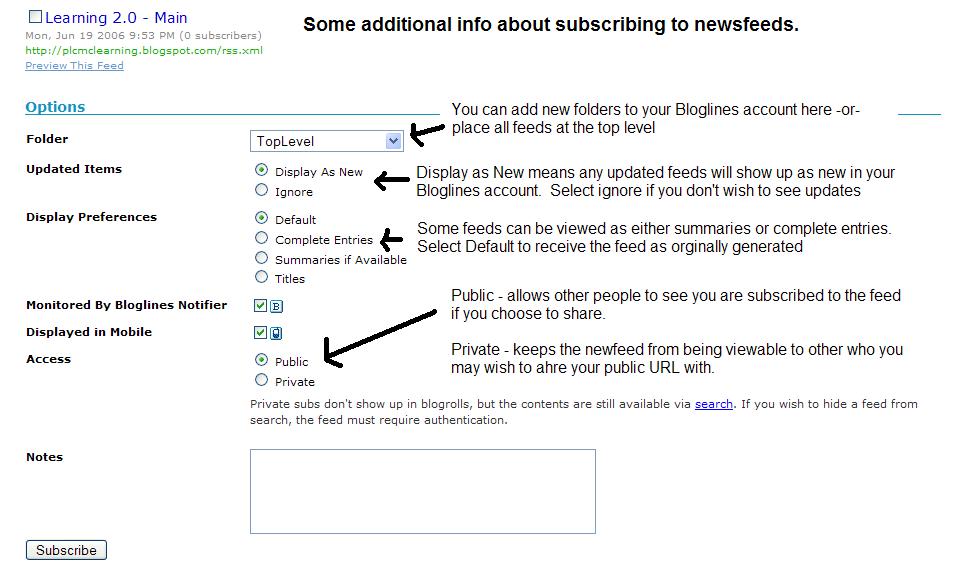
- Using Bloglines Tutorial (how to keep up with dozens of blogs everyday) – This online tutorial walks you through how to setup a Bloglines account and add newsfeeds. Follow Steps 1 to 3 to set up your Bloglines account. Steps 4 – 9 are optional and cover how to subscribe to different types of feeds (podcasts, Flickr albums, etc)
- Adding RSS Feeds to Bloglines - A short YouTube video that I created showing how to add feeds.
- Additional Bloglines news feed subcription information (screenshot image)
- Follow the discovery resources above to learn more about RSS and newsreaders.
- Create a free online Bloglines account for yourself and subscribe to at least 10 newsfeeds to your reader. See Using Bloglines Tutorial steps 1-3 for instructions.
- Create a post in your blog about this exercise. Optional: If you're up to the challenge, you can provide the URL address to your public bloglines account (find where to find this below)
Don’t know what to blog about? Think about these questions:
What do you like about RSS and newsreaders?
How do you think you might be able to use this technology in your work or personal life?
How can libraries use RSS or take advantage of this new technology?
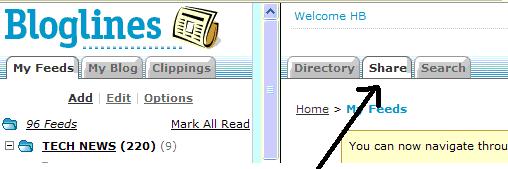
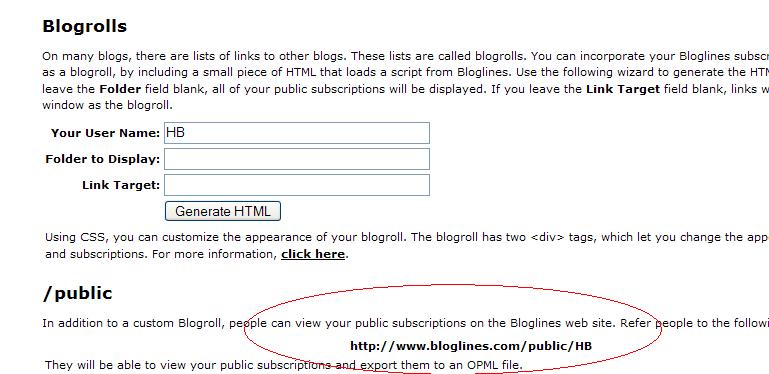
How to find your public Bloglines URL:
- Click on the Share tab within your Bloglines account:
- Scroll down the right screen pane and locate the public URL (see screenshot)
- Be sure to add this as part of your post to demonstrate your completion of this activity.
Make sure you subscribe to the RSS feed for Ephrata Public Library's 23 Things and also for the library's activites.
Tuesday, February 9, 2010
Week #2 - Photos and Images
Thing #4 - Explore Flickr
Photo sharing websites have been around since the 90s, but it took a small startup site called Flickr to catapult the idea of “sharing” into a full blown online community. Within the past year, Flickr has become the fastest growing photo sharing site on the web and is known as one of the first websites to use keyword “tags” to create associations and connections between photos and users of the site.
For this discovery exercise, you are asked to take a good look at Flickr and discover what this site has to offer. Find out how tags work, what groups are, and all the neat things that people are using Flickr for.
Thing #5 - Have Some Flickr Fun and Discover Flickr Mashups and Third Party Sites
Take a good look around Flickr and discover an interesting image that you want to blog about. Be sure to include either a link to the image or, if you create a Flickr account, you can use Flickr's blogging tool to add the image in your post. Another option you have for including images in your post is to use Blogger's photo upload tool.
A quick word about photo posting etiquette:
When posting identifiable photos of other people (especially minors) is it advisable to get the person's permission before posting their photo in a publicly accessible place like Flickr. Never upload pictures that weren't taken by you (unless you have the photographer's consent) and always give credit when you include photos taken by someone else in your blog.
Photo sharing websites have been around since the 90s, but it took a small startup site called Flickr to catapult the idea of “sharing” into a full blown online community. Within the past year, Flickr has become the fastest growing photo sharing site on the web and is known as one of the first websites to use keyword “tags” to create associations and connections between photos and users of the site.
For this discovery exercise, you are asked to take a good look at Flickr and discover what this site has to offer. Find out how tags work, what groups are, and all the neat things that people are using Flickr for.
Thing #5 - Have Some Flickr Fun and Discover Flickr Mashups and Third Party Sites
- Flickr Learn More tour (6 steps)
- Mediamazine Flickr Tutorials
- Flickr: Popular tags
Interesting- Last 7 days - Flickr Services (3rd party applications & mashups)
Take a good look around Flickr and discover an interesting image that you want to blog about. Be sure to include either a link to the image or, if you create a Flickr account, you can use Flickr's blogging tool to add the image in your post. Another option you have for including images in your post is to use Blogger's photo upload tool.
A quick word about photo posting etiquette:
When posting identifiable photos of other people (especially minors) is it advisable to get the person's permission before posting their photo in a publicly accessible place like Flickr. Never upload pictures that weren't taken by you (unless you have the photographer's consent) and always give credit when you include photos taken by someone else in your blog.
Subscribe to:
Posts (Atom)